
By Sean Bagshaw
Without a doubt, the digital photography technique that I get asked about most is how to blend exposures for increased dynamic range. One of the distinct ways that digital image processing has changed photography is the ability to combine information from more than one exposure to create a single final image. This ability allows us to overcome many of the limitations and shortcomings of photography that have frustrated generations of film photographers, such as depth of field, image dimensions and dynamic range. We can now combine varying focal points to create infinite depth of field, stitch multiple images to create panoramas of any dimension and combine different exposures to extend dynamic range.
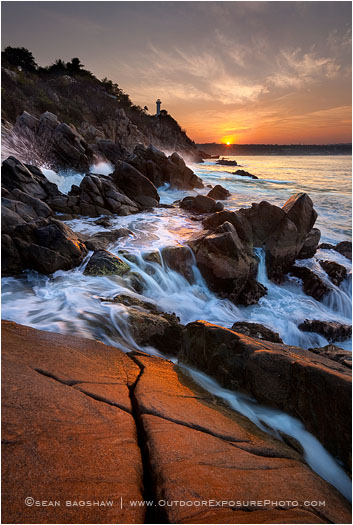
Copper Coast
It has also opened up a debate about what constitutes “reality” in photography since it is possible to create composite images made up of parts of images taken at different times and in different locations. While I rarely dabble in this sort of photo illustration, the fact that I approach photography as an artist means I am mostly interested in how an image impacts me visually and less interested in how it was made. With my focus keenly set on artistic expression I’ll leave the debate over what constitutes “right” and “wrong” in photography to the photo journalists and photography traditionalists.
HDR (high dynamic range) software has taken the photo world by storm and it provides a fairly easy interface for even the most amateur photographers to combine exposures and create high dynamic range images. Currently, however, all the software solutions I have tried create quality issues for someone like myself who wants to create large fine art prints. They allow very minimal local control over the effects they create and often produce a very cartoonish or glowing look that may or may not be what is intended. Most problematic to me are the color shifts, low contrast and digital artifacts that can be introduced by HDR software. For these reasons almost all of my exposure blending is done using hand bending techniques with layer masks in Photoshop.
I’d like to point out that I don’t ever set out with the intent of creating an “HDR” image. I use whatever techniques are needed to allow me to produce a final image of the scene that best expresses the way I envisioned it in my mind’s eye. Sometimes blending multiple exposures is the right technique when the contrast range is high, but often it isn’t necessary. I’d also like to mention that manually blending exposures the way I do probably doesn’t qualify as actual HDR imaging based on someones definition. The sole intent of my exposure blending is to retain detail in the highlights and shadows of scenes that have too much contrast for a single exposure to contain.

Unforgettable Fire
In effect, I’m trying to produce an image that feels like what I experience and not be limited by what the camera “sees”. I will often use the term XDR (extended dynamic range) instead of HDR to differentiate what I’m doing from using HDR imaging software.
A few months back I wrote an article called Bracketing Exposures For Exposure Blending. It describes how I know when I need to bracket multiple exposures in the camera and how I go about doing said bracketing. For people just starting to learn how to blend multiple exposures this would be a helpful read.
There are actually many techniques available for blending the correctly exposed portions of two or more images using layer masks in Photoshop. I often give private instruction to people who want to learn the more complex methods. I also teach full day classes on the subject. The next class will be at the Cascade Center Of Photography in Bend, Oregon in April. More information is available on my site HERE.
For this article I’ll keep to the basics and explain how to set up your layers and layer mask for a simple two exposure blend. I will also explain a couple of the most basic blending techniques; the gradient mask blend and blending by painting on a mask.
The first step is to open the two exposures you want to blend in Photoshop and view them both side by side. For basic blending this usually means you have one exposure in which a darker landscape is properly exposed and a second exposure in which a brighter sky area is properly exposed.

Open the two exposures in Photoshop (click to enlarge).
Next, we need to stack the two exposures together as layers in a single image document. Blending can be accomplished with either exposure on top, but for this example I’ll place the darker image on top. There are many ways to accomplish this, but the one I use most often is to copy the dark image (Select>All then Edit>Copy) and paste it on top of the light image. This is done by clicking on the light image to make it active and then going to Edit>Paste. You can also use the keyboard shortcuts if your prefer. The two images will now appear in the layers palette of this image document as separate layers. You will be viewing the top layer. To see the bottom layer you can click the “eye” icon of the top layer to turn it off allowing the bottom layer to become visible. At this point I will usually view the image at 100% magnification and set the opacity of the top layer to 50% to make sure that the two images line up perfectly. If I notice that any parts of the image don’t line up I’ll use the Move tool to align them. If the images were not shot on a tripod or if there was significant camera shift between the two you can shift+click on the second layer so that they are both selected (highlighted blue) and then go to Edit>Auto Align Layers to get them to line up. Once everything is in alignment set the opacity of the top layer back to 100%.

Dark exposure copied on top of the light exposure (click to enlarge).
Now add a Layer Mask to the top layer. This is done by clicking on the top layer to highlight it and then either clicking on the New Layer Mask Icon at the bottom of the Layers Palette or going to Layer>Layer Mask>Reveal All. Now you should see a white Layer Mask Icon on the top image layer in the Layers Palette.

Layer mask added to the top layer (click to enlarge)
For those unfamiliar, a Layer Mask is used to control how much of the top layer is revealed and how much of the layer below is revealed. A complete white mask reveals only the top layer. A complete black mask is like a window which reveals only the layer below rendering the top layer invisible. Shades of gray will reveal the top and bottom layers blended together to varying degrees depending on how dark the shade of gray is.
For this image we want the darker exposure of the sky area to be revealed while also revealing the lighter exposure of the landscape area from the image below. Perhaps the most basic way to accomplish this is through the use of the Gradient tool to simulate a graduated neutral density filter. Select the Gradient tool from the Tools window and make sure the Reverse box is checked so the gradient will transition from white to black. Now select the Layer Mask by clicking on it in the Layers Palette. Create the gradient by clicking above the top of the image and dragging down to just past the horizon.

After the gradient has been created on the mask (click to enlarge).

What the mask looks like with the gradient applied.
You have now created a gradient (that can be seen by looking at the Layer Mask on the Layers Palette) that fades from white toblack. The white area at the top of the gradient reveals the darker sky exposure on top. The black area at the bottom of the gradient reveals the lighter foreground exposure from the bottom layer. The gray transition portion of the gradient creates a smooth blended transition between the two exposures much the way that a graduated neutral density filter does. You can experiment with the width and location of the transition by dragging thegradient from different spots and in different amounts until you achieve the look you want. This is a very simple blend technique which has many of the disadvantages that graduated filters have, namely a straight transition that darkens mountains, trees or whatever happens to be protruding from the landscape up into the sky. Like a graduated filter, this technique works best with scenes that have a fairly flat horizon, like the ocean or the desert.

The lighter exposure on the left and the final blended image on the right.
A second simple technique that gives a little more control over the transition between the two exposures is painting on the mask with the Brush tool. Start with your two images layered in one document with a white layer mask on the top layer as in the last example.

Original light and dark exposures to be opened and stacked as layers in Photoshop.
Now select the Brush Tool and set the Brush diameter to be slightly smaller than the width of the foreground area and the Brush hardness to zero. Finally, make sure the Brush color is set to black by typing D on the keyboard to set the colors to the default white and black. Now type X on the keyboard or click the double arrow in the Tools window to make black the foreground color for the Brush. With the layer mask selected (by clicking on it) you can try painting on the image with the black brush set to 100%.

Example of painting on the mask with 100% opacity black brush (click to enlarge).
Everywhere you paint you will see through the mask and reveal the layer below. It’s best not to paint all the way through the mask at once, so back up (contrl+alt+Z until you mask is back to white) and set the opacity of the brush to something lower (say 30%). Now try incrementally painting in the foreground exposure and creating a feathered edge along the horizon that looks natural.

Final blended image using a painted mask (click to enlarge).
Artistic judgment and practice is needed for this technique and it is easy to create blends that don’t look natural. If you mess up, just switch to a white brush and blend back the other direction as needed. The advantages to the painting technique are that you can create a custom mask that more closely matches an uneven horizon than the gradient tool can. You can also vary the size, hardness and opacity of the Brush to fine tune your blending.

Close up of what the hand painted blending mask looks like (click to enlarge).
As I said, these are the two most basic methods of blending exposures. They can be useful with just the right type of image, but for more complex blends I often employ a variety of blending techniques. Some of the techniques are very involved and challenging, taking hours of practice and a freakish knowledge of the depths of Photoshop. I doubt I would ever be able to explain them adequately in writing, but I may try to tackle some of them here on the Photo Cascadia blog in the future. As I mentioned earlier, I have the most success teaching them privately and in full day image processing classes. I am also finishing up a series of video tutorials that will be available through my website in the near future. You can sign up for my newsletter at www.OutdoorExposurePhoto.com to get news about new videos and workshops.
If you have any questions feel free to leave them in the comments below and I’ll do my best to answer them. Happy blending!
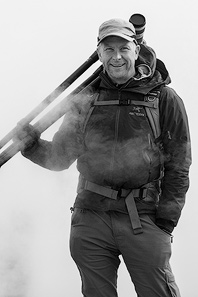
Sean is an outdoor photographer, digital image developing enthusiast and photography educator based in Ashland, Oregon, where he resides with his wife and two sons. His previous career as a science teacher makes photography education a good fit. Sean teams up with fellow Photo Cascadia members leading workshops. He also teaches digital image developing classes, lectures and offers a series of Photoshop video tutorials.
More posts by Sean Visit Sean’s Image Gallery Visit Sean’s Website
Recent Comments